Set up DataStep Studio and the data
You need three things: a free SAS session, an editor that shows you what SAS does, and the data. Plan about 10 minutes, once.
Watch the whole path first: install, Check Setup, profile, first run, both debuggers. The video was recorded in a fresh VS Code with nothing installed.
Install DataStep Studio
Section titled “Install DataStep Studio”-
Get a SAS OnDemand account. Register at welcome.oda.sas.com. Write down your user ID and your region. The account is free for learning.
-
Check Java and Python. In a terminal, type
java -versionandpython3 --version(Windows:py --version). You need Java 8 or newer and Python 3.8 or newer. Missing? Java: Eclipse Temurin from adoptium.net. Python: python.org. -
Install DataStep Studio. In VS Code, open the Extensions view (
Shift+Cmd+Xon a Mac,Shift+Ctrl+Xon Windows), search for DataStep Studio and click Install. -
Run Check Setup. Open the Command Palette (
Shift+Cmd+PorShift+Ctrl+P) and run DataStep Studio: Check Setup. If SASPy is missing, click Install SASPy. -
Connect. Run DataStep Studio: Add New Connection Profile, choose SAS OnDemand, and enter your region and user ID. Your password is asked at the first run and kept in your computer’s keychain.
What each step looks like
Section titled “What each step looks like”These pictures come from a test run on a computer with no SASPy and no SAS configuration, the situation of a new user.
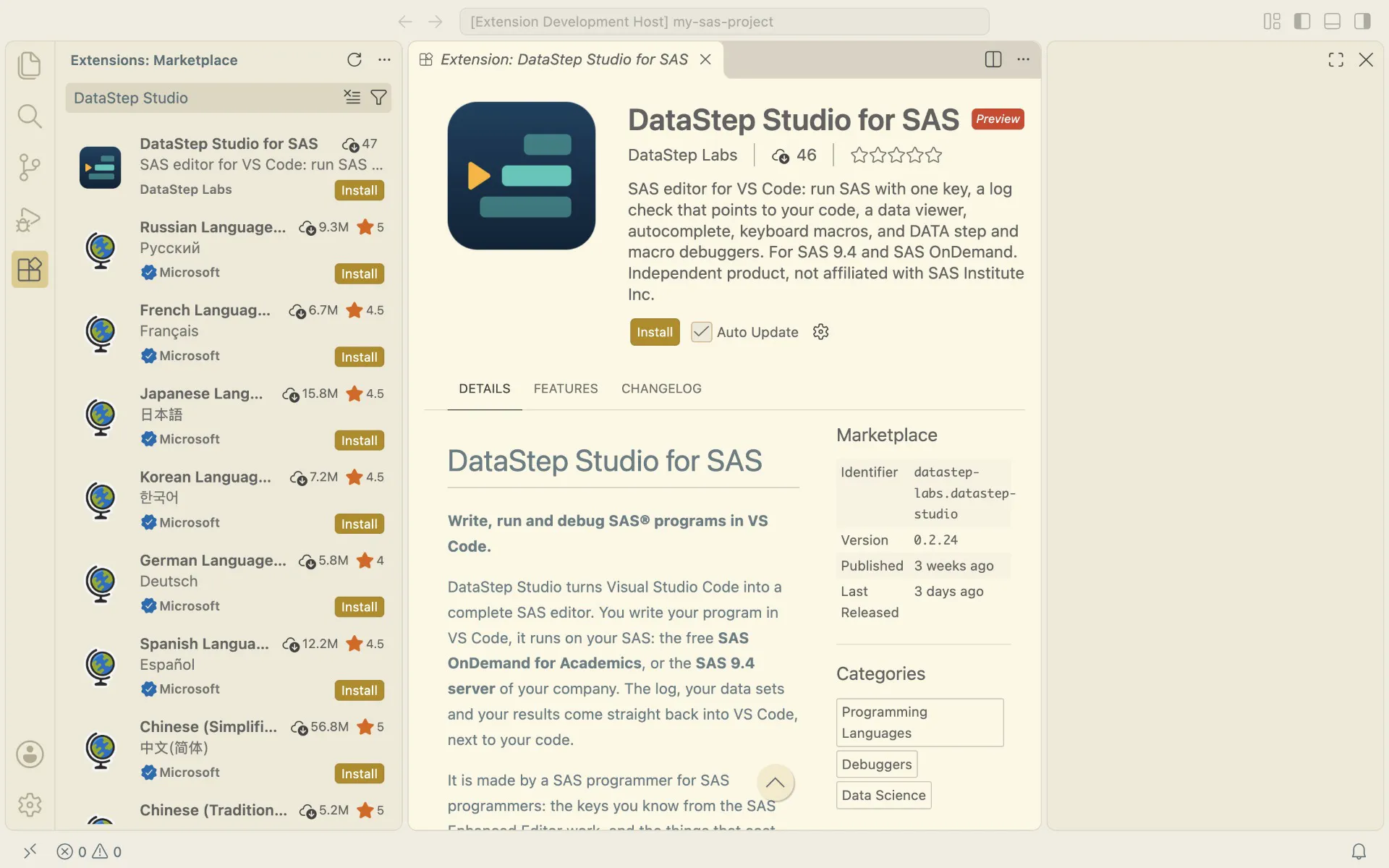
Step 3: the Marketplace page. Publisher DataStep Labs; click Install.
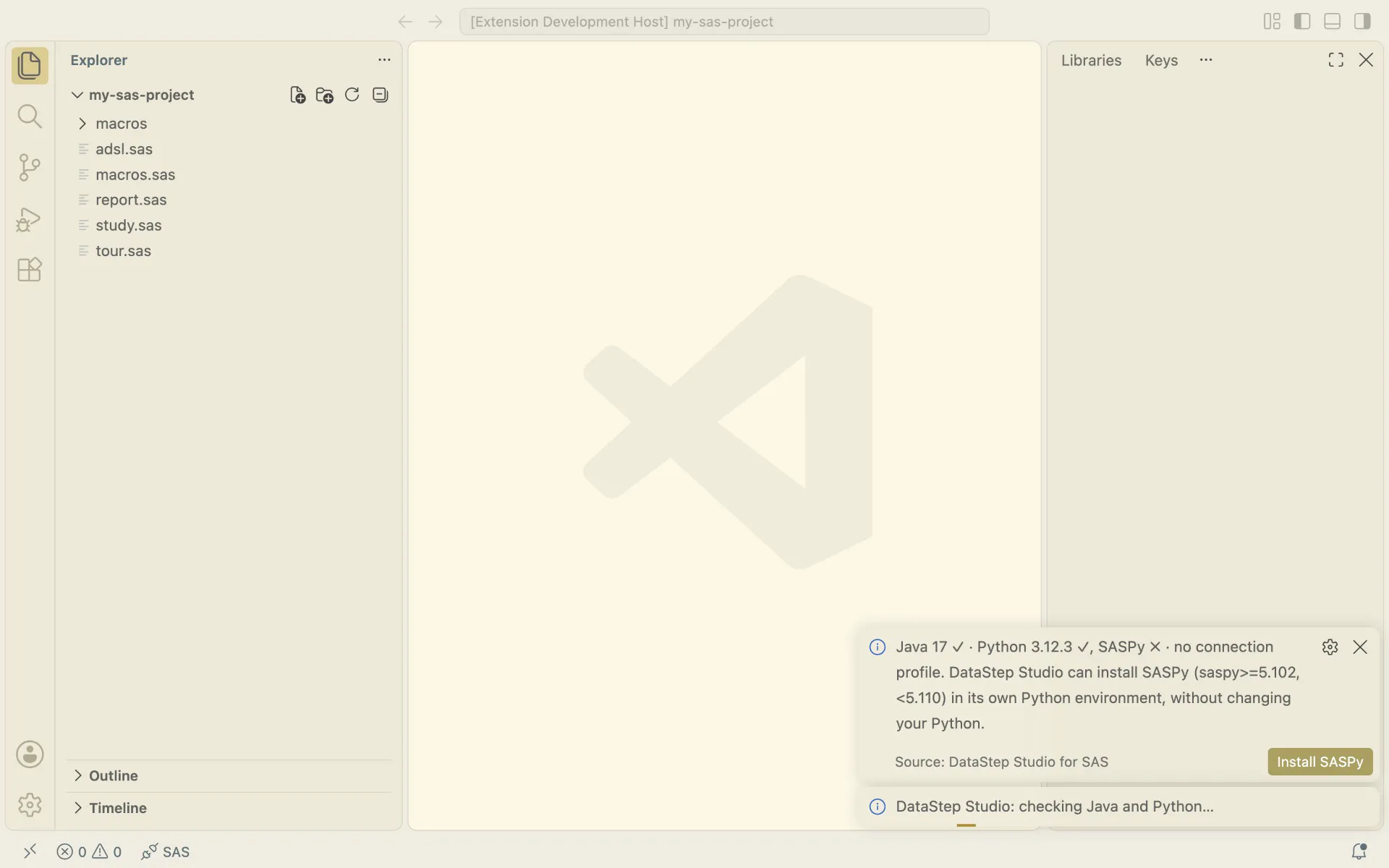
Step 4: Check Setup finds Java and Python and sees that SASPy is missing. Click Install SASPy. It goes into DataStep Studio’s own Python environment and does not change your Python.
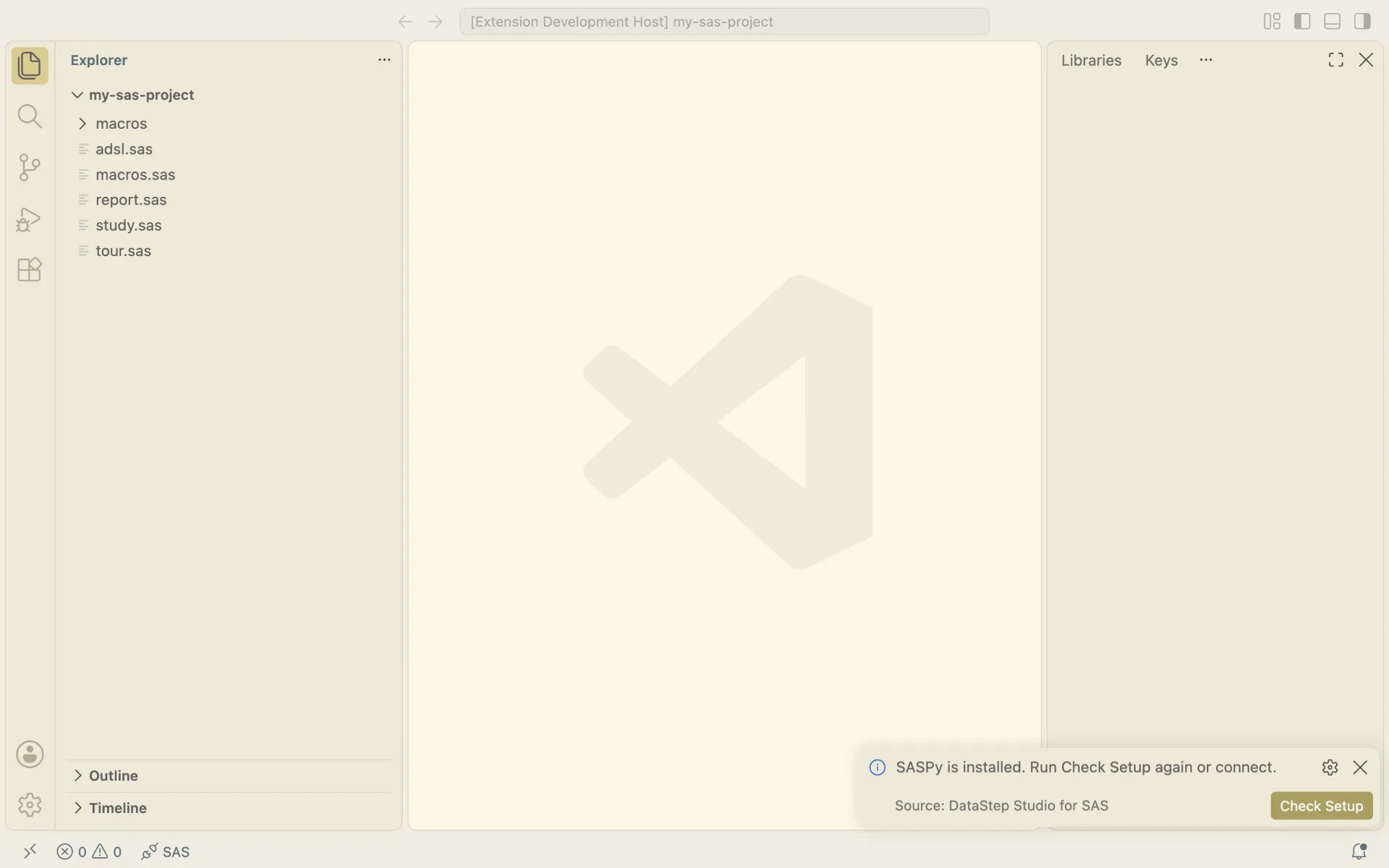
A few seconds later: “SASPy is installed.” Now add the connection profile.
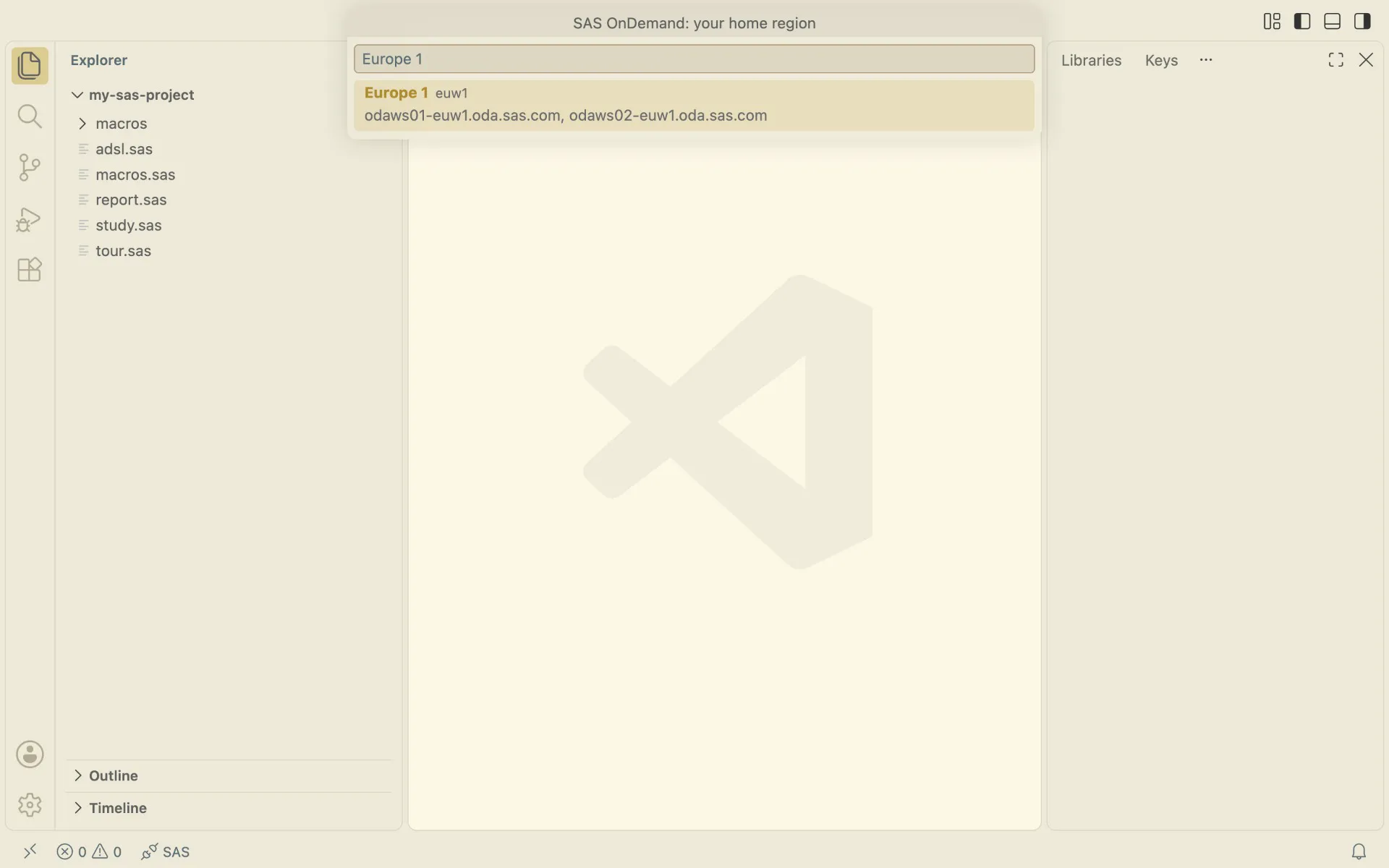
Step 5: choose your home region. It is the region SAS OnDemand shows next to the house icon after you sign in, for example Europe 1.
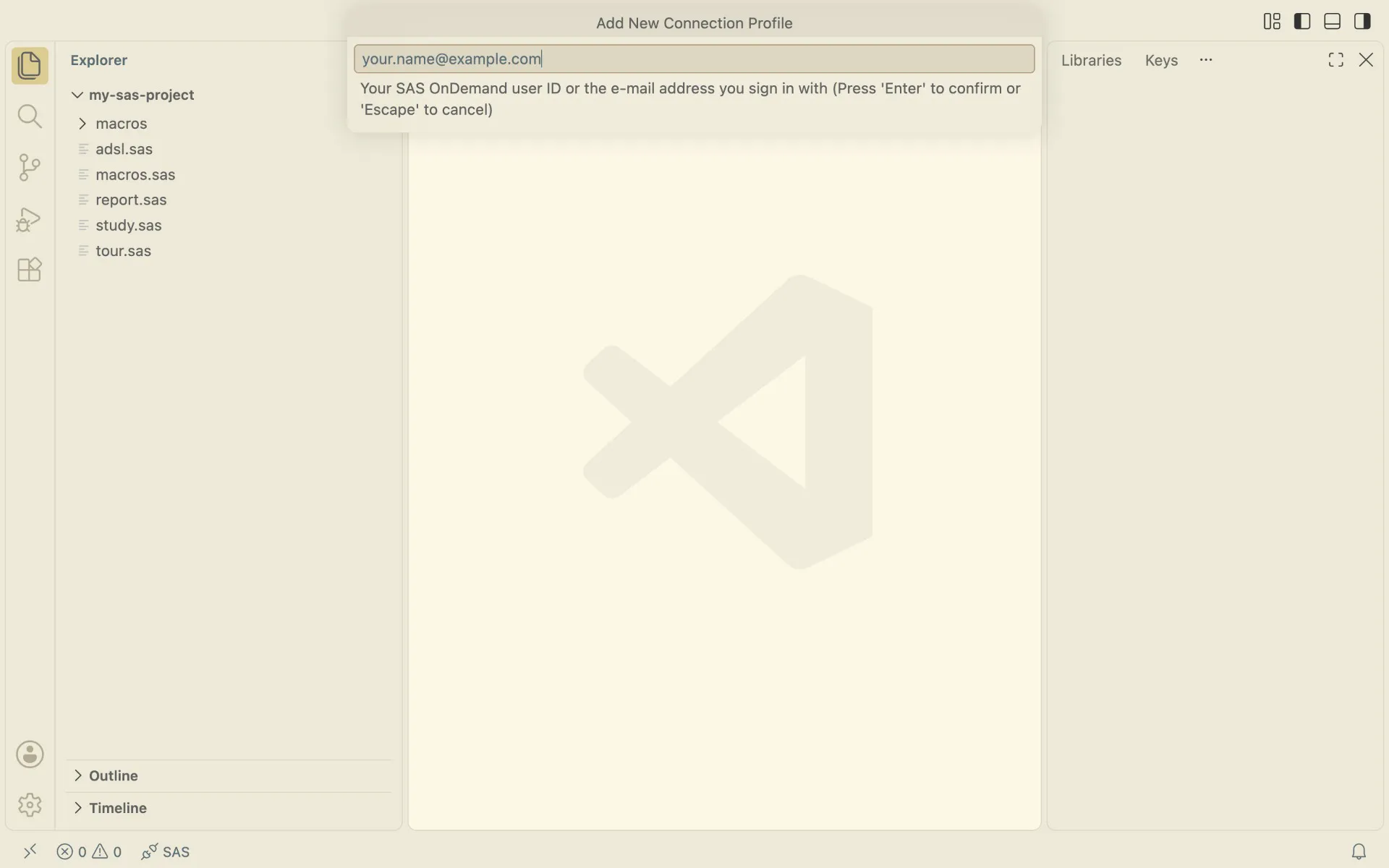
Then your user ID (an example here). Not sure what it is? The e-mail address you sign in with also works. Then press Enter for the profile name and click Connect Now. A masked box asks for your password once.
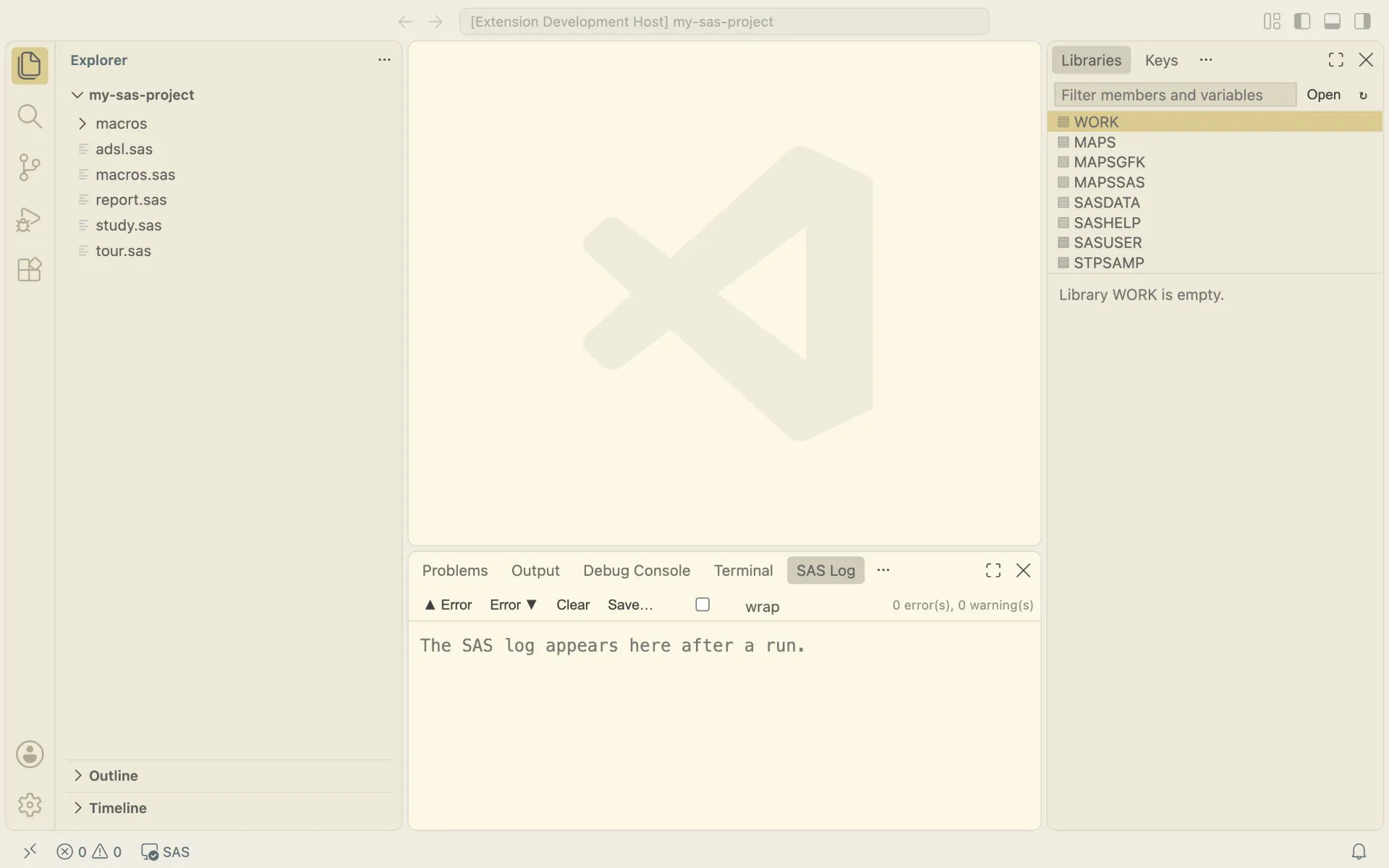
Connected: the Libraries tab lists your SAS libraries. In the test run this took 4 seconds after the password.
Prefer one command? Mac or Linux: curl -fsSL https://datastep-studio.pages.dev/install.sh | sh. Windows PowerShell: irm https://datastep-studio.pages.dev/install.ps1 | iex.
The keys you need in this book:
| Key | What it does |
|---|---|
F4 | Run the selection, or the whole program |
Ctrl+Alt+Up | Run from the top down to the cursor |
F12 | Open the data set the last step created |
F10 / F5 | In the debugger: run one statement / run to the next breakpoint |
Get the book’s programs
Section titled “Get the book’s programs”Every program in this book is in one file: sas-book-programs.zip. Unzip it into your sasbook folder. The programs are numbered by chapter (04_first_last.sas belongs to chapter 4), and within a chapter the file order is the run order. There is no macro library to install: every macro the book uses is written in the book, in the chapter that needs it.
Every program in the zip ran in DataStep Studio on SAS OnDemand, all in one session and in file order, before this book was published.
Load the pilot study once
Section titled “Load the pilot study once”Create a folder sasbook on your computer, save this program as 00_setup.sas, and press F4. It downloads the CDISC pilot study (SAS transport files from the PHUSE scripts repository, MIT licence) and copies it into two libraries.
/* Book setup: download the CDISC pilot study once and assign two libraries */%LET book = %SYSGET(HOME)/sasbook;%LET src  = https://raw.githubusercontent.com/phuse-org/phuse-scripts/master/data;
OPTIONS DLCREATEDIR;/* DLCREATEDIR creates one folder level only, so create the parent first */LIBNAME book "&book.";LIBNAME sdtm   "&book./sdtm";LIBNAME refadm "&book./refadam";LIBNAME xptdir "&book./xpt";LIBNAME xptdir CLEAR;LIBNAME book CLEAR;
%MACRO getxpt(kind, mem, lib);  %LOCAL xpt;  %LET xpt = &book./xpt/&mem..xpt;  %IF NOT %SYSFUNC(FILEEXIST(&xpt.)) %THEN %DO;    FILENAME dl "&xpt.";    PROC HTTP URL="&src./&kind./cdiscpilot01/&mem..xpt" METHOD="GET" OUT=dl; RUN;    FILENAME dl CLEAR;  %END;  LIBNAME inxpt XPORT "&xpt.";  PROC COPY IN=inxpt OUT=&lib. MEMTYPE=DATA; RUN;  LIBNAME inxpt CLEAR;%MEND getxpt;
%MACRO getall;  %LOCAL i m;  %LET sdtmlist = dm ae cm ds ex lb mh sv vs suppdm;  %LET adamlist = adsl adae adlbc advs adtte;  %DO i = 1 %TO %SYSFUNC(COUNTW(&sdtmlist.));    %LET m = %SCAN(&sdtmlist., &i.);    %getxpt(sdtm, &m., sdtm)  %END;  %DO i = 1 %TO %SYSFUNC(COUNTW(&adamlist.));    %LET m = %SCAN(&adamlist., &i.);    %getxpt(adam, &m., refadm)  %END;%MEND getall;%getall
What you should see in the Libraries view:
| Library | Data set | Records |
|---|---|---|
| SDTM | DM | 306 |
| SDTM | AE | 1191 |
| SDTM | EX | 591 |
| SDTM | VS | 29643 |
| SDTM | LB | 59580 |
| REFADM | ADSL | 254 |
| REFADM | ADAE | 1191 |
| REFADM | ADTTE | 254 |
What the program does
Section titled “What the program does”You do not need to understand this program yet. Run it once and go on. When you come back after Part I and chapter 8, it reads like this:
%LETstores two texts: the folder in your SAS home and the web address of the data.&book.and&src.use them later.LIBNAMEwithOPTIONS DLCREATEDIRcreates the folderssdtm,refadamandxptand points a library name at each.%getxpthandles one data set.%SYSFUNC(FILEEXIST(...))checks if the file is already there. If not,PROC HTTPdownloads it, like a browser saves a file. ThenLIBNAME ... XPORTopens the transport file (.xpt, the file format the FDA asks for), andPROC COPYcopies its data set into the library.%getallcalls%getxptonce for each name in two lists, with a%DOloop over the words of the list. Chapter 8 explains such loops.
Because of the check in step 3, a second run downloads nothing. It only copies the data sets again.
REFADM holds the reference ADaM from CDISC. In Part II you build your own ADaM and compare it with this one, the way real validation works.
Start every session with these lines
Section titled “Start every session with these lines”OPTIONS NOCENTER;LIBNAME sdtm "%SYSGET(HOME)/sasbook/sdtm";LIBNAME refadm "%SYSGET(HOME)/sasbook/refadam";