Write code faster
Beginners lose time on option names, on typing the same PROC SORT again, and on tidying other people’s code. DataStep Studio does these jobs, so you can think about the logic. The keys are on the cheat sheet.
22.1 Autocomplete that knows your data
Section titled “22.1 Autocomplete that knows your data”Suggestions open as you type, or with Ctrl+Space (on a Mac where Control+Space switches the keyboard language, use Cmd+I). They come from two places: SAS itself and your session.
| You type | You get |
|---|---|
PROC | the procedures |
| a statement, an option, a function | SAS statements, options, functions, formats, data set options, system options |
refadm. | the data sets of the library |
WHERE in a step that reads refadm.adsl | the columns of refadm.adsl |
& | your macro variables, written as &name. |
% | your macros |
Help on hover. Rest the mouse on INTCK: its description, its syntax and a link to the SAS documentation. Parameter hints: type INTCK( and a hint shows which argument comes next.
Open a macro’s definition. Cmd+click (Mac) or Ctrl+click a call such as %count_by( in 08_2_count_by.sas: the file that defines the macro opens at its %MACRO line. On an %INCLUDE statement, the included program opens. Or right-click → Open Macro Definition / Included Program.
22.2 Keyboard macros: type a name, press Tab
Section titled “22.2 Keyboard macros: type a name, press Tab”Type a short name in a program and press Tab: the code is written for you. Tab again jumps to the next place to fill; type over it.
-
Type
sortand press Tab:PROC SORT DATA=have OUT=want; BY usubjid; RUN; -
Press Tab to jump from
havetowanttousubjid, and type over each one.
DataStep Studio brings 81 keyboard macros. The ones a clinical programmer uses most:
| Type | and Tab writes |
|---|---|
data, sort, nodupkey, merge | everyday steps; merge comes with IN= flags |
ifelse, select | IF / ELSE IF / ELSE or SELECT, with an ERROR when nothing is assigned |
attrib, firstlast, doarray | the patterns of chapters 3, 4 and 7 |
sql, join, into | a new table, a left join, values into a macro variable |
freq, means, transpose, compare | the procedure with its output data set |
%nobs, %varexist, %varlist | macros that tell you about a data set or a variable |
dupcheck, nsubj, bign, %required, qcopts | quick checks: duplicate keys, the number of subjects, the N of a table header, a required parameter, strict options |
debug_on, debug_off, putuser | MPRINT, MLOGIC and SYMBOLGEN on and off; all your macro variables in the log |
header, headerm, change | a program or macro header with the file name and today’s date; a change note |
kill, session | delete all WORK data sets; unstick SAS after an unclosed quote |
All of them, with their code, are in the appendix of the DataStep Studio manual (DataStep Studio: Open Manual).
Bring your own from SAS. Export them in the SAS Enhanced Editor (Tools → Keyboard Macros → Macros → Export), then run DataStep Studio: Import Keyboard Macros from SAS (.kmf).
Make your own. Select some code, right-click → Save Selection as Keyboard Macro… and give it a name, for example adslmerge. Then adslmerge + Tab writes it. The Keys tab (F9) lists, edits and deletes them. A team can share one set in .vscode/settings.json (datastepStudio.keyboardMacros).
22.3 Format SAS Program
Section titled “22.3 Format SAS Program”Inherited a program where every line looks different? Right-click in it → Format SAS Program. To format only some lines, highlight them and press Ctrl+Shift+F (also on a Mac).
Before:
data adsl;set sashelp.class;if age<13 then grp='child';else grp='teen';run;After:
DATA adsl; SET sashelp.class; IF age < 13 THEN grp = 'child'; ELSE grp = 'teen';RUN;It applies the house style of this book: keywords in upper case, names in lower case, two spaces per level, one statement per line, = aligned, and &ads becomes &ads.. It never touches strings, comments, DATALINES or macro text. If anything but the layout would change, it leaves the program alone and tells you why. Cmd+Z (Ctrl+Z) takes it back.
More keys you know from SAS: Ctrl+K comments the selected lines with /* */ and removes the comment again. Ctrl+Shift+U and Ctrl+Shift+L change to upper and lower case. Alt+PageUp and Alt+PageDown jump to the start and end of a DO block.
22.4 Smart code
Section titled “22.4 Smart code”The helpers in this section are in the Professional edition, free during Early Access at the time of writing.
Step templates. Type proc so and press Enter: the whole PROC SORT step is written. DATA= offers the data sets your program made above it, and BY gets the BY you used before or the usual keys (USUBJID, PARAMCD …). There are templates for 18 procedures, and da gives DATA (SET) or DATA (MERGE a b).
Values in quotes. Type WHERE trt01p = ' and the values of TRT01P in your data appear, the most frequent first. No more typos in "Xanomeline Low Dose".
Your macros. Type %cou and press Enter: a new call of %count_by from chapter 8 with every parameter and its default:
%count_by( data =, by =, where = 1, out = counts, debug = N)Tab moves from value to value.
Enlarge and Optimize. Put the cursor on a call. Ctrl+Shift+E (Enlarge Macro Call) shows every parameter, with your values and the defaults. Ctrl+Shift+O (Optimize Macro Call) leaves out the parameters that have their default value; press it again to put the call on one line. This works for every %MACRO definition in your project, also the book’s own macros.
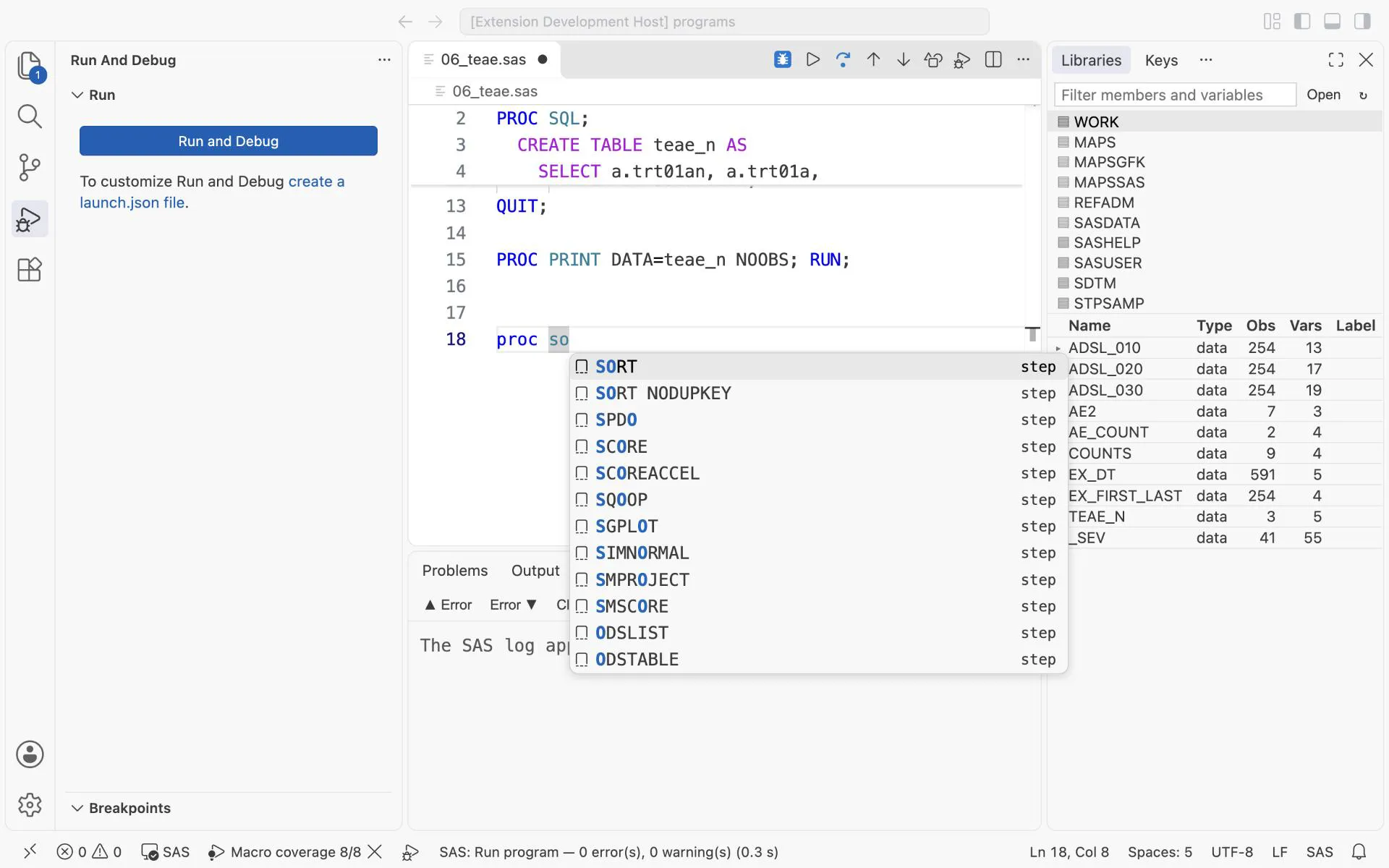
Type proc so: the list offers the step templates SORT and SORT NODUPKEY. Enter writes the whole step.
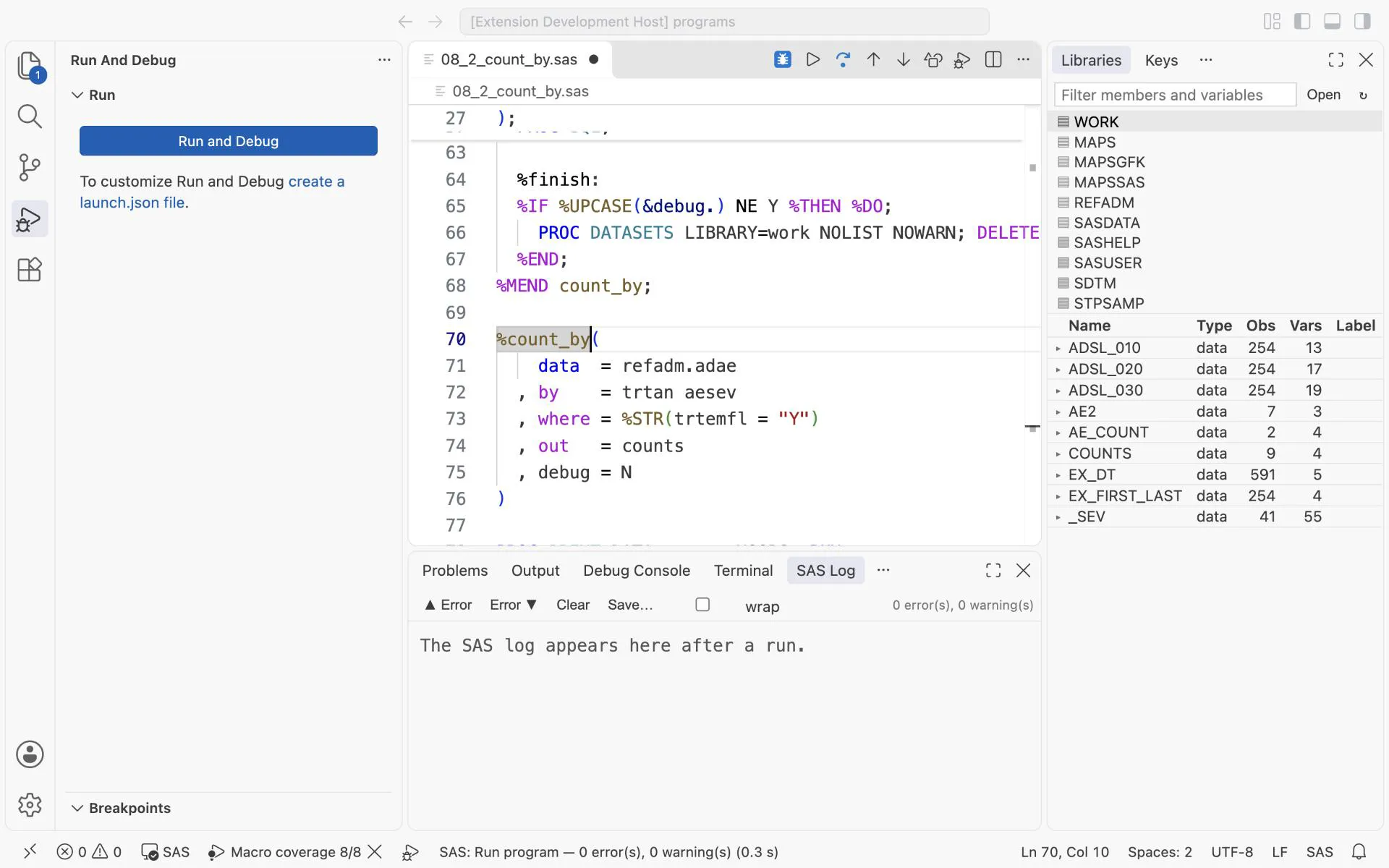
Enlarge Macro Call on %count_by: the one-line call becomes one parameter per line, each with its value or default, ready to read or change.
Exercises
Section titled “Exercises”Exercise 22-1. In an empty program, write a PROC SORT of refadm.adae by usubjid aedecod with the sort keyboard macro, without typing PROC.
Exercise 22-2. Format 08_loop.sas with Format SAS Program. Did anything change? Why not?
Exercise 22-3. Save your two LIBNAME lines as a keyboard macro named libs.
Answers: Chapter 22 answers.
Next: debug a DATA step.