Debug a DATA step
The DATA step is a loop you cannot see: SAS reads a record into the PDV (the program data vector, chapter 2), runs your statements, writes the record, and starts again. The DATA step debugger shows that loop: one statement at a time, every variable with its value. Use it to learn RETAIN, FIRST., LAST. and MERGE, and to find why one subject has a wrong value.
The DATA step debugger is in the Professional edition, free during Early Access at the time of writing. All keys are on the cheat sheet.
23.1 The keys
Section titled “23.1 The keys”Start with the cursor in a DATA step and Debug DATA Step in the title bar. Then F10 runs one statement, F5 runs to the next breakpoint, a click in the margin sets a breakpoint, and the Variables view shows the PDV. The sessions below use each of them. All keys are on the cheat sheet.
The debugger runs the step on its input, so the input must exist: run the steps before it first, for example with Run To Line (Ctrl+Alt+Up, chapter 20).
23.2 Session 1: FIRST. and LAST. count adverse events
Section titled “23.2 Session 1: FIRST. and LAST. count adverse events”/* Chapter 4: FIRST. and LAST. count the AEs of each subject */PROC SORT DATA=sdtm.ae(KEEP=usubjid aedecod aestdtc WHERE=(usubjid IN ("01-701-1015" "01-701-1023"))) OUT=ae2; BY usubjid aestdtc;RUN;
DATA ae_count; SET ae2; BY usubjid; IF FIRST.usubjid THEN n_ae = 0; n_ae + 1; IF LAST.usubjid THEN OUTPUT;RUN;WORK.AE2 has 7 records: 3 for subject 01-701-1015 and 4 for 01-701-1023.
- Put the cursor on the PROC SORT and choose Run Step in the ▷ menu.
What you should see:
NOTE: The data set WORK.AE2 has 7 observations. - Put the cursor in the DATA step and click Debug DATA Step.
What you should see: the first line of the step is marked, and the Variables view shows the PDV:
usubjid,aedecod,aestdtc,n_aeand the BY flagsFIRST.usubjidandLAST.usubjid. - Press
F10until then_ae + 1;line has run. What you should see: on the first recordFIRST.usubjid = 1andn_ae = 1. - Click in the margin of the line
IF LAST.usubjid THEN OUTPUT;. Right-click the red dot → Edit Breakpoint →usubjid = "01-701-1023". PressF5. What you should see: the debugger stops on the first record of 01-701-1023 (the fourth record), andn_ae = 1: the counter started again becauseFIRST.usubjid = 1. - Press
F5three more times. What you should see:n_aegoes 2, 3, 4. On the last stopLAST.usubjid = 1, so this record is written withn_ae = 4.
The chapter 4 stepper shows the same loop, frame by frame.
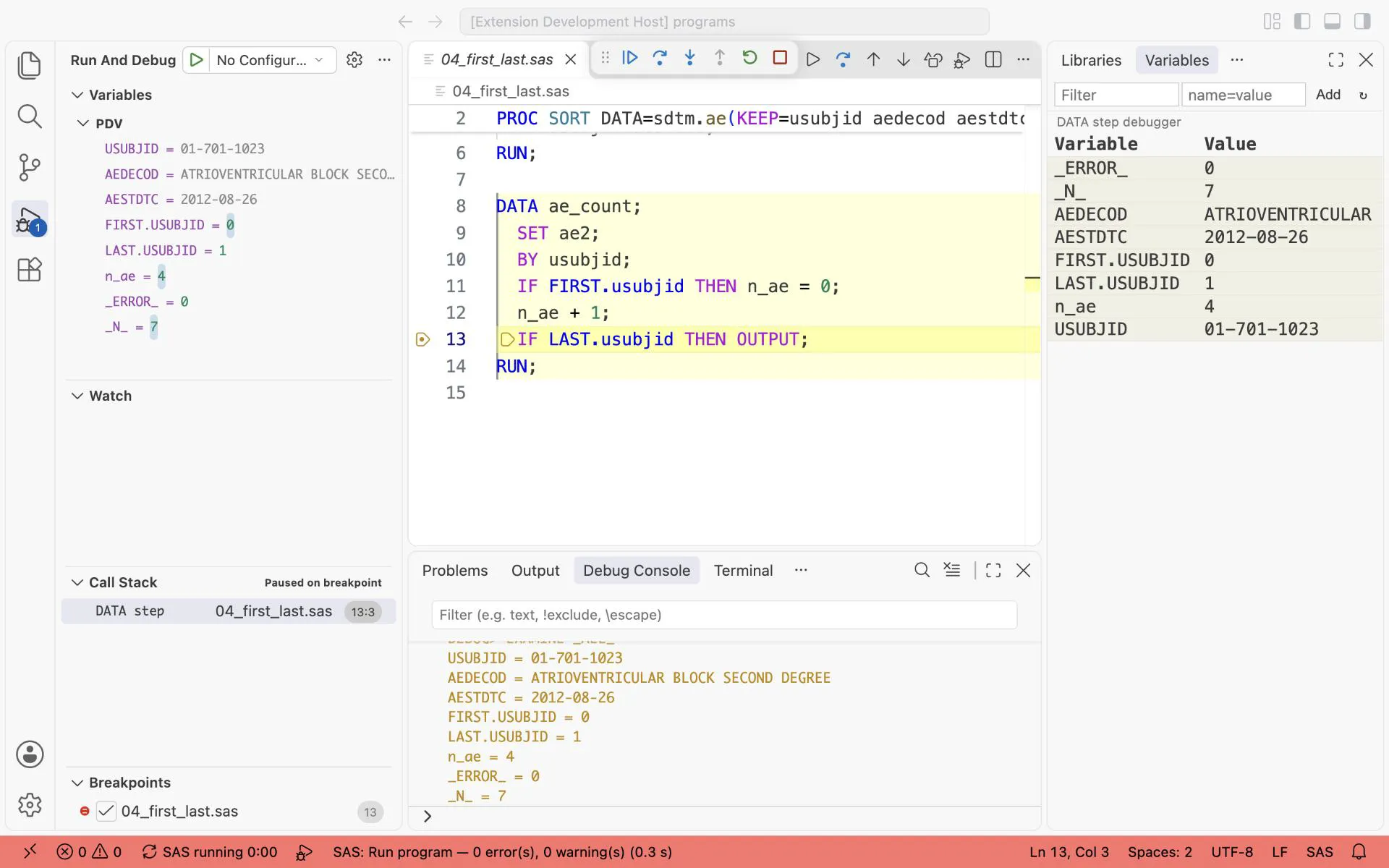
The same breakpoint with another condition, n_ae = 4: the debugger stops only on the last AE of 01-701-1023. LAST.USUBJID = 1, so this record is written.
23.3 Session 2: why is CHG missing? (RETAIN)
Section titled “23.3 Session 2: why is CHG missing? (RETAIN)”04_no_retain.sas computes the change from baseline weight, but chg is missing on every record and the log is clean.
- Run the PROC SORT of
04_no_retain.sas, then debug the DATA step. - Press
F10until the lineIF vsblfl = "Y" THEN base = vsstresn;runs on the baseline record. What you should see:base = 54.43. - Press
F10to the next record. What you should see:baseis missing again. At the start of each loop, SAS sets every variable that you create back to missing, unless you RETAIN it. - Now debug
04_retain.sas, the version withRETAIN base;, the same way. What you should see: on the next recordbaseis still 54.43, and after thechglinechghas a value.
You have seen the rule of RETAIN instead of reading about it.
23.4 Session 3: where does each MERGE record come from?
Section titled “23.4 Session 3: where does each MERGE record come from?”05_merge.sas merges the tiny DM and AE tables with IN= flags. Run 05_0_tiny.sas first, then debug the MERGE step.
- Set a breakpoint on the line
OUTPUT all;with the conditionusubjid = "S4", pressF5twice. What you should see:aedecod = NAUSEA,age = 74(kept from the one DM record),indm = 1,inae = 1. - Remove the condition, press
F5untilusubjid = "S5". What you should see:indm = 0,ageis missing. S5 has an AE but no DM record: this is the record a carelessIF inae;would keep and a carelessIF indm;would drop.
IN= variables, FIRST. and LAST. are not written to the output data set, so the debugger is the only place where you see them.
23.5 %pry in a DATA step: a breakpoint you write into the code
Section titled “23.5 %pry in a DATA step: a breakpoint you write into the code”A breakpoint lives in the editor. %pry lives in the program, so it survives a restart and you can send it to a colleague. In a DATA step, write %pry(when=...) on its own line and press F4. The step stops just before the statement after it, for every record where the condition is true. The condition uses the variables of the record, without &.
03_retain_pry.sas has the line %pry(when=usubjid = "01-701-1015") before the chg line. In the Debug Console:
lsshows the variables of the current record,nruns one statement (thechgline),cgoes on to the next record where the condition is true.
Chapter 24 has everything about %pry.
23.6 A DATA step that calls a macro
Section titled “23.6 A DATA step that calls a macro”A DATA step can contain a macro call. The debugger steps through it too: DataStep Studio writes out the step with the statements the macro generates, opens it beside your program, and steps through that copy. Run the macro’s definition first, so SAS knows the macro.
To see why a macro wrote that code, which %IF branch it took, use the macro debugger in chapter 25.
Exercises
Section titled “Exercises”Exercise 23-1. In 04_first_last.sas, set a breakpoint with the condition FIRST.usubjid = 1. How many times does the debugger stop? Why?
Exercise 23-2. In 05_merge.sas, stop on subject S1. Which output data sets will this record go to? Press F10 and check.
Exercise 23-3. Write %pry(when=vsblfl = "Y") into 04_retain.sas before the chg line. How many times does it stop?
Answers: Chapter 23 answers.
Next: %pry, the complete guide.