Your daily loop
Every SAS programmer repeats one loop all day: write, run, read the log, look at the data, fix. This chapter makes each part shorter. You have used the basics since chapter 2. The keys are also on the cheat sheet.
20.1 Run exactly the code you want
Section titled “20.1 Run exactly the code you want”You do not have to run a whole program to test one change.
| Run mode | Key | What runs | Use it when |
|---|---|---|---|
| Run | F4, Cmd/Ctrl+Enter; F3, F8 as in SAS | the selection, else the whole program | you start, or you changed many places |
| Run To Line | Ctrl+Alt+Up | from the top down to the cursor line | you want the data as it is at one point of a long program |
| Run From Line | Ctrl+Alt+Down | from the step at the cursor to the end | the first part is done and its WORK data sets exist |
| Run Step | ▷ menu in the title bar | the step, SQL statement, macro definition or macro call at the cursor | you changed one step |
| Run As Macro | Command Palette | %DO/%IF code selected inside a macro; it asks for the parameters | you test one part of a macro |
| Resolve Code | Ctrl+Alt+R | shows the code a macro call generates, formatted, beside your program | you want to see what a macro really does |
| SAS command | Ctrl+Alt+C | one line of SAS from a small box with history | a quick %PUT &=sysver.; or WSAVE ALL |
| Run in Template | Command Palette | your code wrapped in a template, for example ODS_RTF for an RTF file | you need the output in a file |
A step is never cut in half: Run To Line runs the whole step that contains the cursor line.
Try it on a long program
Section titled “Try it on a long program”09_1_adsl.sas builds ADSL in numbered steps: adsl_010 to adsl_040, then adsl.
- Put the cursor on the line
/* Step 040: population flags from SUPPDM, N when no record */and pressCtrl+Alt+Up. What you should see: the Libraries tab listsADSL_010,ADSL_020andADSL_030, but not yetADSL_040. - Change something in step 040, put the cursor in it, and choose Run Step in the ▷ menu. Only that step runs.
- Put the cursor on the call
%count_by(data=refadm.adae, ...)at the bottom of08_2_count_by.sas(run the program once first, so SAS knows the macro) and pressCtrl+Alt+R. What you should see: beside your program, the DATA step and the PROC SQL that the call generates, withrefadm.adae,trtan, aesevand the WHERE filled in.
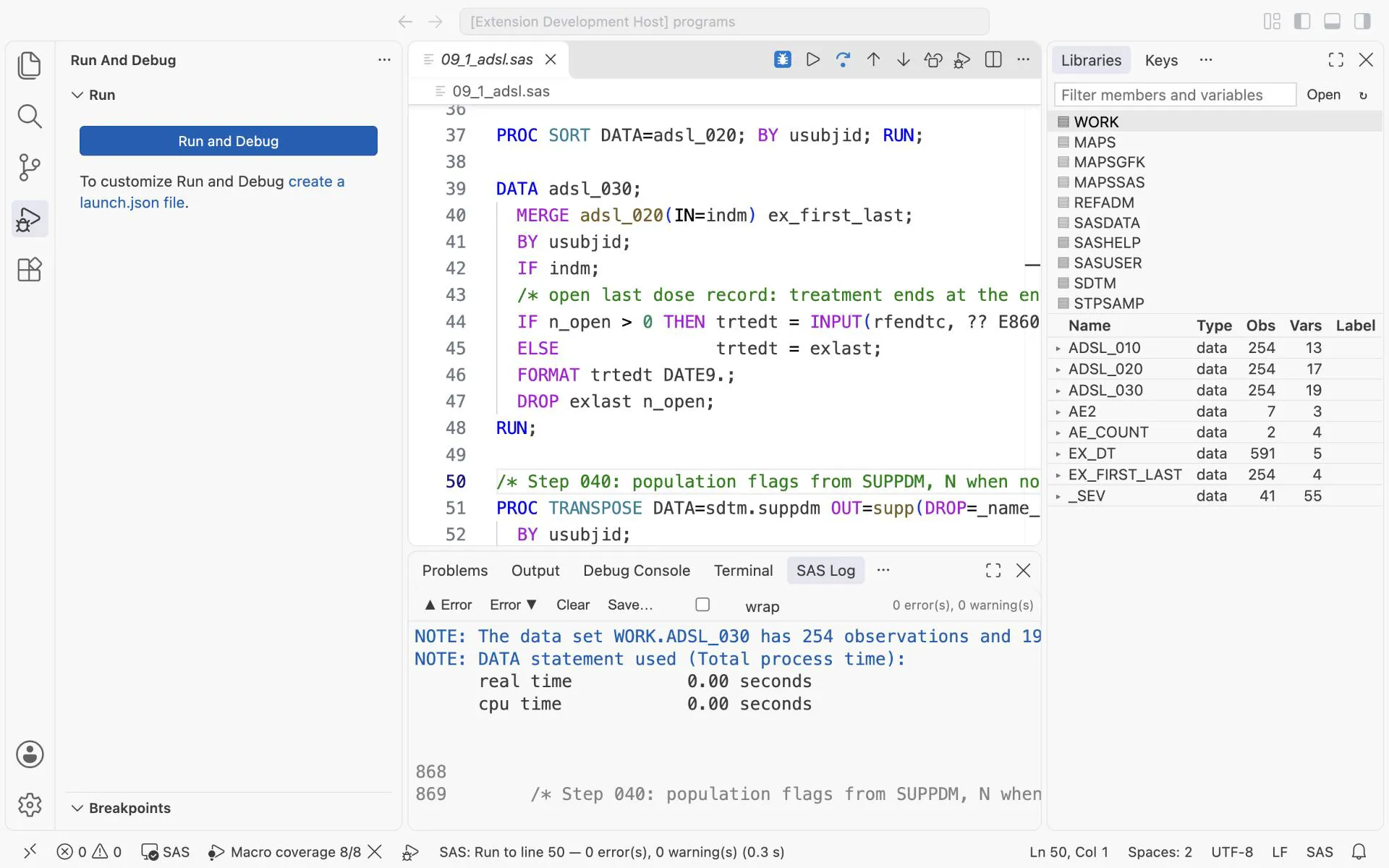
Run To Line (Ctrl+Alt+Up) with the cursor on the Step 040 comment: everything above it ran, so the Libraries tab lists ADSL_010 to ADSL_030, and the log ends with “Run to line 50”.
Stop a run
Section titled “Stop a run”While SAS runs, the status bar shows SAS running 0:12 and a Stop SAS button. One click stops the code, like Ctrl+Break in SAS. Your session, WORK data sets and macro variables stay.
20.2 Read only the log lines that matter
Section titled “20.2 Read only the log lines that matter”The SAS Log opens below your program. ERROR is red, WARNING yellow, NOTE blue. ▲ Error and Error ▼ jump from problem to problem, and a click on an ERROR moves the cursor to the line in your program that caused it. F2 clears the log and the output.
Three places show problems:
| Tab | What it shows |
|---|---|
| SAS Log | the whole log of every run |
| Problems | every ERROR, WARNING and important NOTE, each with its program line; the line also has a squiggle |
| Suspicious Log | only what a QC log check looks for: ERROR, WARNING and NOTEs such as uninitialized, Missing values were generated, repeats of BY values and Invalid data |
The Chapter 2 screenshot shows the Suspicious Log after a program with four such NOTEs.
Your team’s own rules. In the settings (Cmd+, or Ctrl+,), datastepStudio.log.suspiciousNotes takes more patterns, for example Table WORK\.\w+ created, with 0 rows. A message you know is harmless goes into datastepStudio.log.suspiciousIgnore.
20.3 See your session at a glance
Section titled “20.3 See your session at a glance”| Where | What | Keys |
|---|---|---|
| Libraries (right) | your librefs and their data sets; ▸ shows the variables with type and label; a click on a variable opens the data set at that column | double-click opens a data set |
| F12 | opens the data set the last step created | F12 |
| Variables (right) | the macro variables of your session; filter them, or add name=value | |
| Options (right) | every system option by group; click one to change it, ↺ puts the old value back, 🔍 finds an option | |
| SAS Output (bottom) | the listing of PROC PRINT, PROC FREQ and the other procedures | Ctrl+Alt+O |
| Created Files (bottom) | files your run wrote, such as an RTF |
Change LINESIZE in two steps: open Options, click 🔍, type linesize, press Enter, type the new value, press Enter. The row then shows (changed, was 132).
Drag any tab where you like. Type WSAVE ALL in the SAS command box (Ctrl+Alt+C) and the same tabs open the next time SAS connects. F9 opens the Keys tab: every command with its keys, and + to give a command your own key.
20.4 Run a whole chapter: Run in Batch
Section titled “20.4 Run a whole chapter: Run in Batch”Run in Batch runs a folder of programs, one after the other, while you keep working.
- In the Explorer, right-click a folder (or select several programs) and choose Run in Batch.
- Keep working: your own session is not touched.
- When it is done, a message tells you how it went. Show Summary opens the overview; the second button opens the first log with errors.
Programs run in the order of their names, numbers by value (2_adae.sas before 10_adlb.sas). Each program gets a fresh SAS session: empty WORK, no macro variables from before. Its .log and .lst are written next to it. So a program that passes in batch really stands on its own. Section 26.5 uses this on the book’s programs.
20.5 Where your files live
Section titled “20.5 Where your files live”Programs on your computer. Open your folder in VS Code and press F4. Before each run, DataStep Studio copies the files that changed to a folder in your SAS home, ~/datastep-studio/<project>-<id>, and runs the program there. A run without changes costs a few milliseconds.
Relative paths just work: %INCLUDE "10_2_0_bds_macros.sas"; in a program of this book finds the file next to it. Files that SAS writes come back to your computer; data sets stay on the server. The status bar shows the server folder, for example ☁ study-3f2a9c1e.
Programs on the server. DataStep Studio: Open SAS Server Folder opens a second window on your SAS OnDemand home: open, edit, save and create files there as usual. The first time, VS Code asks whether you trust the folder: click Trust…, then Trust.
Both side by side. DataStep Studio: Open File Manager shows a folder of your computer on the left and a server folder on the right. Space marks files, F5 then Enter copies them to the other side, and F6 then Enter moves them. It is a Professional feature, free during Early Access at the time of writing.
Exercises
Section titled “Exercises”Exercise 20-1. Open 04_first_last.sas. Run only the PROC SORT with Run Step, then press F12. How many rows does WORK.AE2 have?
Exercise 20-2. Add the pattern Table WORK\.\w+ created, with 0 rows to your Suspicious Log rules. Write a PROC SQL with WHERE 0 and run it. Does the Suspicious Log flag it?
Exercise 20-3. Change LINESIZE to 100 in the Options tab, run a PROC PRINT, then put the old value back with ↺.
Answers: Chapter 20 answers.